Contents7 sections
- Compound interest Excel basics: how FV works
- Worked examples: lump sum and monthly contributions
- Annual vs monthly compounding: matching rate and nper
- Using a compound interest calculator and adjusting for tax and fees
- Checklist before you rely on the number
- Frequently asked questions
- Sources and references
Compound interest Excel calculations come down to one function, FV: =FV(rate, nper, pmt, [pv], [type]). The one rule that prevents most mistakes is to express the rate and the number of periods in the same unit. For 4% a year compounded monthly over 10 years, the rate is 4%/12 and nper is 120. This guide, checked against Microsoft's official function documentation as of October 2026, walks through lump-sum and monthly-savings examples, explains why annual and monthly compounding give different answers, and shows how to turn a pre-tax result into a more realistic figure.
Compound interest Excel basics: how FV works
Compound interest means interest is added to the balance and then earns interest itself in later periods. For a single deposit, the future value is principal × (1 + periodic rate)^periods. For regular contributions, each deposit grows for the number of periods it remains invested, and the results are added together. According to Microsoft's FV documentation, FV calculates the future value of an investment based on a constant interest rate and works with either periodic, constant payments or a single lump sum.
rate
- Meaning
- Interest rate per period
- Example (4%, 10 years, monthly)
- 4%/12
nper
- Meaning
- Total number of periods
- Example (4%, 10 years, monthly)
- 10*12 = 120
pmt
- Meaning
- Equal payment each period; cash you pay out is negative
- Example (4%, 10 years, monthly)
- -500 (0 for a lump sum)
pv
- Meaning
- Starting amount; cash you pay out is negative
- Example (4%, 10 years, monthly)
- -10000 (omit if none)
type
- Meaning
- 0 = end of period, 1 = beginning
- Example (4%, 10 years, monthly)
- 0 if omitted
The sign convention confuses many first-time users. Excel treats deposits as cash you pay out, so they should be negative; the future value you would receive is then positive. If FV returns a negative number, the formula is usually correct and only the signs are reversed. Because FV assumes one constant rate and one constant payment, a plan with changing contributions or rates is better modeled in a period-by-period table.
Worked examples: lump sum and monthly contributions
A $10,000 lump sum at 4% for 10 years
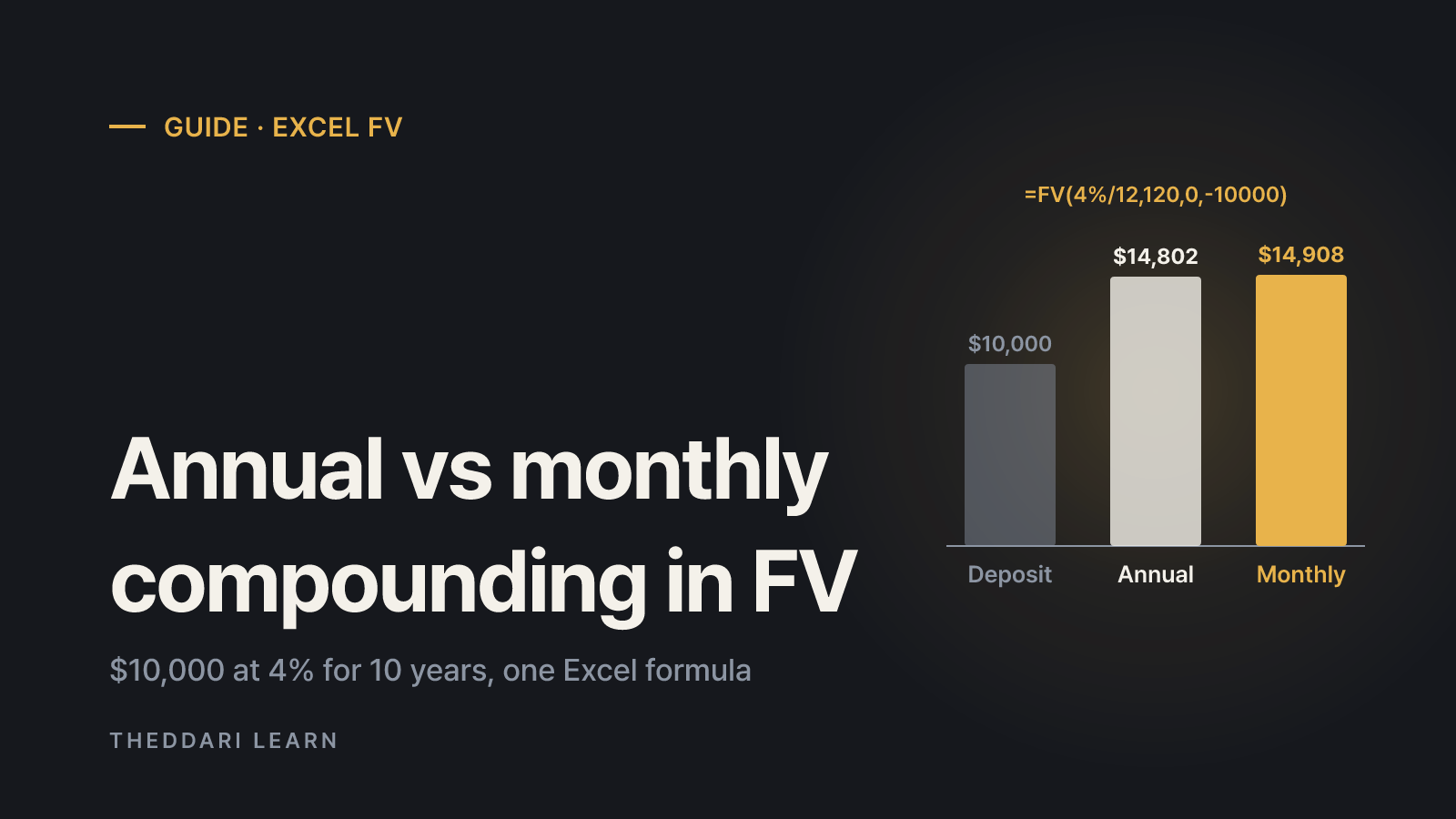
With annual compounding, interest is credited once a year, so use a 4% rate and 10 periods: =FV(4%,10,0,-10000) returns about $14,802.44. With monthly compounding, use =FV(4%/12,120,0,-10000), which returns about $14,908.33. The direct formula =10000*(1+4%/12)^120 gives the same monthly result. The gap of roughly $106 comes entirely from crediting interest more often.
Saving $500 a month for 10 years
If you deposit $500 at the end of each month at 4% compounded monthly, enter =FV(4%/12,120,-500). The result is about $73,624.90. You contributed $60,000, so pre-tax interest is about $13,625. If deposits are made at the start of each month, set type to 1: =FV(4%/12,120,-500,0,1) returns about $73,870.32, because every deposit has one extra month to grow.
You can check your setup against Microsoft's own example: a 12% annual rate, 12 payments of $1,000 and =FV(A2/12, A3, A4) produce $12,682.50. If your sheet reproduces that figure, your signs and units are aligned.
Annual vs monthly compounding: matching rate and nper
The most common error is changing the number of periods to months while leaving the annual rate untouched. Microsoft's remarks specifically warn to keep units consistent: for monthly payments on a four-year loan at 12% annual interest, use 12%/12 for rate and 4*12 for nper. Entering =FV(4%,120,-500) tells Excel the account earns 4% every month, and the result runs into millions of dollars. Entering 4%/12 with nper of 10 calculates only ten months.
Annual
- rate
- 4%
- nper (10 years)
- 10
- $10,000 at 4%
- about $14,802
Monthly
- rate
- 4%/12
- nper (10 years)
- 120
- $10,000 at 4%
- about $14,908
Direct formula (monthly)
- rate
- (1+4%/12)^120
- nper (10 years)
- -
- $10,000 at 4%
- about $14,908
Two accounts with the same stated rate but different compounding schedules do not deliver the same annual return. To compare them on one basis, use the EFFECT function, which returns the effective annual rate from a nominal rate and the number of compounding periods per year. =EFFECT(4%,12) returns about 4.074%. Microsoft's example converts a 5.25% nominal rate compounded quarterly to about 5.354%.
The same idea applies whenever a rate is quoted per short interval. Crypto perpetual futures funding rates, for example, settle at fixed intervals, and simply multiplying an interval rate by the number of intervals is not the same as compounding it. When you review interval rates in the theddari funding arbitrage tool, note which annualization method is shown. Funding rates change with market conditions, so they cannot be dropped into FV as if they were a fixed deposit rate.

Using a compound interest calculator and adjusting for tax and fees
An online tool such as the SEC's Investor.gov compound interest calculator asks for an initial investment, a monthly contribution, the length of time in years, an estimated annual interest rate, an optional interest rate variance range and a compounding frequency (annually, semiannually, quarterly, monthly or daily). Those fields map directly onto FV: initial investment is pv, monthly contribution is pmt, and the frequency determines how you divide the rate and multiply the years. The variance range is useful because it shows results above and below your central assumption rather than a single number.
Both the calculator and FV produce pre-tax figures. Microsoft notes that pmt typically contains principal and interest but no other fees or taxes. How interest is taxed depends on where you live and the type of account. As one documented example, Korea's National Tax Service lists a 14% withholding rate on ordinary interest income for resident individuals, plus local income tax of 10% of that amount, for a combined 15.4%. Other jurisdictions and tax-advantaged accounts follow different rules.
- 1
Separate pre-tax interest
Subtract what you deposited from the FV result. In the $10,000 monthly example, $14,908.33 minus $10,000 is about $4,908 of interest.
- 2
Apply tax once at maturity
If tax is taken only when interest is paid at the end, multiply interest by your applicable rate. Using the Korean 15.4% example, tax is about $756 and after-tax interest about $4,152.
- 3
Apply tax each period when interest is reinvested
If tax is due as interest is credited, use an after-tax rate: 4% × (1 − 0.154) = 3.384%. Then =FV(3.384%/12,120,0,-10000) returns about $14,020. Timing of tax changes the outcome.
- 4
Approximate fees by lowering the rate
For a fund with an annual expense ratio, subtracting the ratio from the expected rate gives a rough estimate. Read the product's disclosure for how fees are actually charged.
Checklist before you rely on the number
FV assumes the rate stays constant for the whole period. Savings rates move with central bank decisions, so assuming you will renew at the same rate can overstate or understate the outcome. The theddari economic calendar lists scheduled central bank rate decisions, which helps you decide when to revisit the rate in your spreadsheet. A calendar does not predict the direction of rates; use it as a reminder to recheck actual product terms after an announcement.
- Rate and nper use the same unit (years or months).
- Deposits and starting balance are negative; the result is positive.
- Type matches when you actually deposit: 0 for end of period, 1 for beginning.
- The product actually compounds, and you know how often.
- The result is converted to an after-tax, after-fee figure.
- For market investments, several rates are tested instead of one.
A compound interest calculator is a convenient front end, and Excel's FV function lets you reproduce and control the same math. Get the units, signs and payment timing right, and you can verify any calculator output in a single cell. Then layer on tax, fees and changing-rate scenarios so the projection reflects the account you actually hold.