Contents9 sections
If your Mac keeps running out of storage while you use Codex Desktop, check the size of its Crashpad pending folder first. From June to October 2026, openai/codex issue #25921 and several related reports described the macOS desktop app quietly writing crash dumps in the background while the app itself stayed usable. Reported totals ranged from about 5 GB in a day to roughly 168 GB. This guide, based on the public issue threads as of October 2026, explains what these files are, where they live, how to measure and remove them safely, and how to tell whether the underlying loop has actually stopped. It applies to macOS; every figure below is one reporter's measurement, not a typical rate for all users.
What are crash dumps and Crashpad?
A crash dump, or minidump, is a file that captures part of a program's state at the moment it crashed. Crashpad, the crash reporting library used by Chromium-based apps, is described in its design overview as a library for capturing, storing and transmitting postmortem crash reports. A separate handler process snapshots the crashed process, writes a dump into a local database and, if configured, uploads it to a collection server. Reports waiting for upload sit in the pending folder.
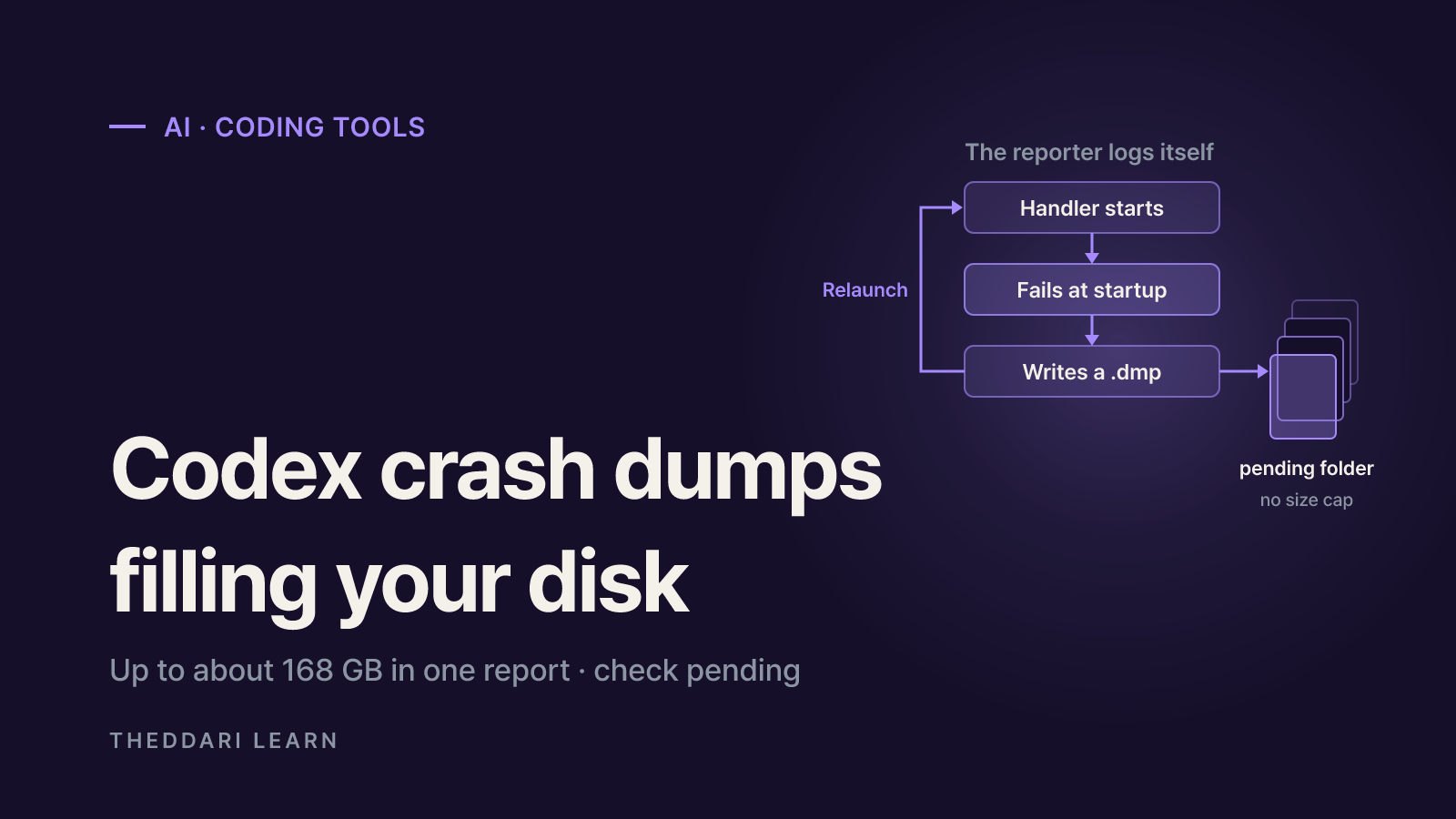
Normally that folder holds a handful of files. The same design document says the database is meant to keep a configurable number of dumps up to a configurable maximum size. In the Codex Desktop reports, dumps were neither uploaded nor pruned, so the folder grew without a ceiling. Most reporters asked OpenAI for the same thing: a size or count cap, or a time-to-live, on the pending directory.
Why this case was unusual
When reporters inspected the dumps, the process crashing was not the Codex window but the crash reporter itself. Issue #36982 and issue #52194 both show browser_crashpad_handler failing a check at exception_handler_server.cc:76 (mach_port_request_notification: invalid capability) right after launch, getting relaunched, and writing a dump about its own failure each time. That is why the app could look healthy while free space disappeared. Some commenters noticed that the first dump lined up with a failed child process launched through Codex's shell tool, but OpenAI has not confirmed a root cause in the threads reviewed.
How fast the folder grew in reported cases
The table lists only figures taken from issue threads read for this guide. Environments, app versions and measurement methods differ, so use it to judge scale rather than to compare reports.
June 2
- Folder
- ~/Library/Application Support/com.openai.codex/web/Crashpad/pending
- Reported size
- 4.9 GB and 54,504 files in a day
- Notes
- New dumps appeared right after cleanup
June 9
- Folder
- Same path
- Reported size
- About 61 GB, 738,864 files
- Notes
- Still about one dump per second after reinstall
August 4
- Folder
- ~/Library/Application Support/Codex/Crashpad/pending
- Reported size
- Estimated 17 GB per day
- Notes
- 34 GB of free space on a 228 GB disk gone in 48 hours
October 8
- Folder
- Same path
- Reported size
- About 168 GB, roughly 1.97 million files
- Notes
- Dump creation stopped after a macOS reboot
Notice that the path changed over time. June reports used com.openai.codex/web/Crashpad, while reports from August onward used Codex/Crashpad. One August reporter had the app installed as ChatGPT.app with the bundle ID com.openai.codex. Check both locations rather than assuming one. Individual dumps were roughly 82 KB to 175 KB, with sidecar JSON files of a few bytes; small files add up to several gigabytes a day at one per second.
How to check Codex Desktop disk usage
Start with the big picture. According to Apple Support, on macOS Ventura 13 or later you can open System Settings, choose General, then Storage to see usage by category. Files in an app's support folder usually do not fit a specific category and tend to show up under the broad System Data bucket. If System Data looks unexpectedly large, inspect the folder directly.
- 1
Measure the folder
In Terminal, run
du -sh "$HOME/Library/Application Support/Codex/Crashpad/pending"anddu -sh "$HOME/Library/Application Support/com.openai.codex/web/Crashpad/pending". A "No such file or directory" message means your version does not use that path. - 2
Count the files
Run
find "$HOME/Library/Application Support/Codex/Crashpad/pending" -type f | wc -l. A few dozen files can be ordinary crash history; thousands or hundreds of thousands point to a loop. - 3
Check whether it is still growing
Repeat the count after a minute or two. Reporters saw about one new dump per second while the app was open. If the number stays flat, you are probably looking at an old backlog.
- 4
Record versions and running handlers
Note the app version from the About dialog, then search Activity Monitor for
browser_crashpad_handler. In the October report, two handlers from an old framework version that no longer existed on disk had been running for nearly two months.
Cleaning up safely
Every reporter who deleted the files inside pending got the space back immediately; the original June reporter went from 4.9 GB to 6.4 MB. If the loop is still running, though, the folder refills, so cleanup has to go together with stopping the cause. The #52194 reporter said OpenAI support advised clearing pending reports with the app closed, keeping the app updated and filing a GitHub issue with measurements.
- Quit Codex (or ChatGPT) completely and confirm it is not running in the menu bar or Dock.
- In Finder, use Go > Go to Folder, paste the pending path, and delete only the files inside that folder. Leave the parent
Crashpadfolder and~/.codexalone. - If there are so many files that Finder or
rmfails, the #36982 reporter usedfind "$HOME/Library/Application Support/Codex/Crashpad/pending" -type f -delete, which removes files one by one and frees space progressively. Double-check the path before pressing Return. - If you deleted through Finder, empty the Trash. Apple notes that space is not released until the Trash is emptied.
- Restart your Mac, check for an app update, then open the app and recount the files over a few minutes.
Do not paste cleanup scripts from issue comments without reading them. Some combine force-killing processes, deleting system caches with sudo and setting immutable flags. A single wrong path can remove unrelated data, and system-level deletions are hard to undo. Run only commands you understand.
What stopped the loop, and what did not
Results varied. In #52194, killing all stale Codex processes did not help, but a macOS reboot brought new dumps to zero. In #36982, one commenter said a full relaunch after updating stopped growth, while another saw roughly one dump per second continue on a newer build. In June, reinstalling made no difference. A Codex contributor commented that a later macOS release (26.5) seemed to resolve it for them, but phrased it as a belief, not a confirmed fix. Whatever you try, finish with the same check: clean, restart, then recount a few minutes later.
Crash dumps may contain sensitive data
It is tempting to attach a dump to a bug report, but be careful. The privacy section of the Crashpad design document warns that dumps may capture arbitrary memory from the crashed process, including user IDs, passwords, credit card information and URLs. Codex reporters also avoided public attachments because dumps can include local paths and the full process environment. AI coding apps handle terminal commands, project files and sometimes environment variables holding API keys, which raises the stakes. Share counts, sizes, app and macOS versions in public, and hand over raw dumps only through an official support channel that provides a private upload path.
How to confirm whether OpenAI has fixed it
As of October 18, 2026, issues #25921 and #36982 were open, and #52194 had been closed by its author after a reboot resolved it locally. A closed issue does not necessarily mean a fix shipped, so read why it was closed. Look in the openai/codex release notes for entries mentioning Crashpad, crash reports or storage limits, and check the issues for a maintainer reply or a linked fix. After any update, rerun the file count above; it is the most direct test on your own machine.
Bug reports about AI coding tools often spread through developer communities and Telegram channels before official notes appear. You can watch theddari's AI Telegram trends and blog trend dashboard to see whether similar reports or update news are gaining attention, then verify the details against the issue threads and release notes.

A storage checklist for AI coding apps
This is not only a Codex Desktop concern. AI coding apps tend to keep logs, caches, session history and working copies on disk, and any folder without a size cap can eventually take up a large share of your drive. A quick monthly check helps you catch problems before the disk is full.
- Open System Settings > General > Storage and watch for sudden jumps in System Data.
- Record the size of each AI coding app's Application Support folder and home-directory config folder (such as
~/.codex) withdu -sh, and compare month to month. - Look for crash report queues like Crashpad
pendingholding thousands of files. - After updating an app, quit and relaunch it fully so helper processes from the old version do not linger.
- Confirm the exact path before deleting anything, and never remove folders holding settings, sessions or work output without a backup.
In short, the Codex Desktop crash dump problem is easy to miss because the app keeps working. Measure the pending folder and its file count, delete only the files inside it with the app closed, then restart or update and confirm the count stays flat. Keep raw dumps private, and rely on issue status and release notes rather than assumptions to judge whether the bug is fixed.