Contents9 sections
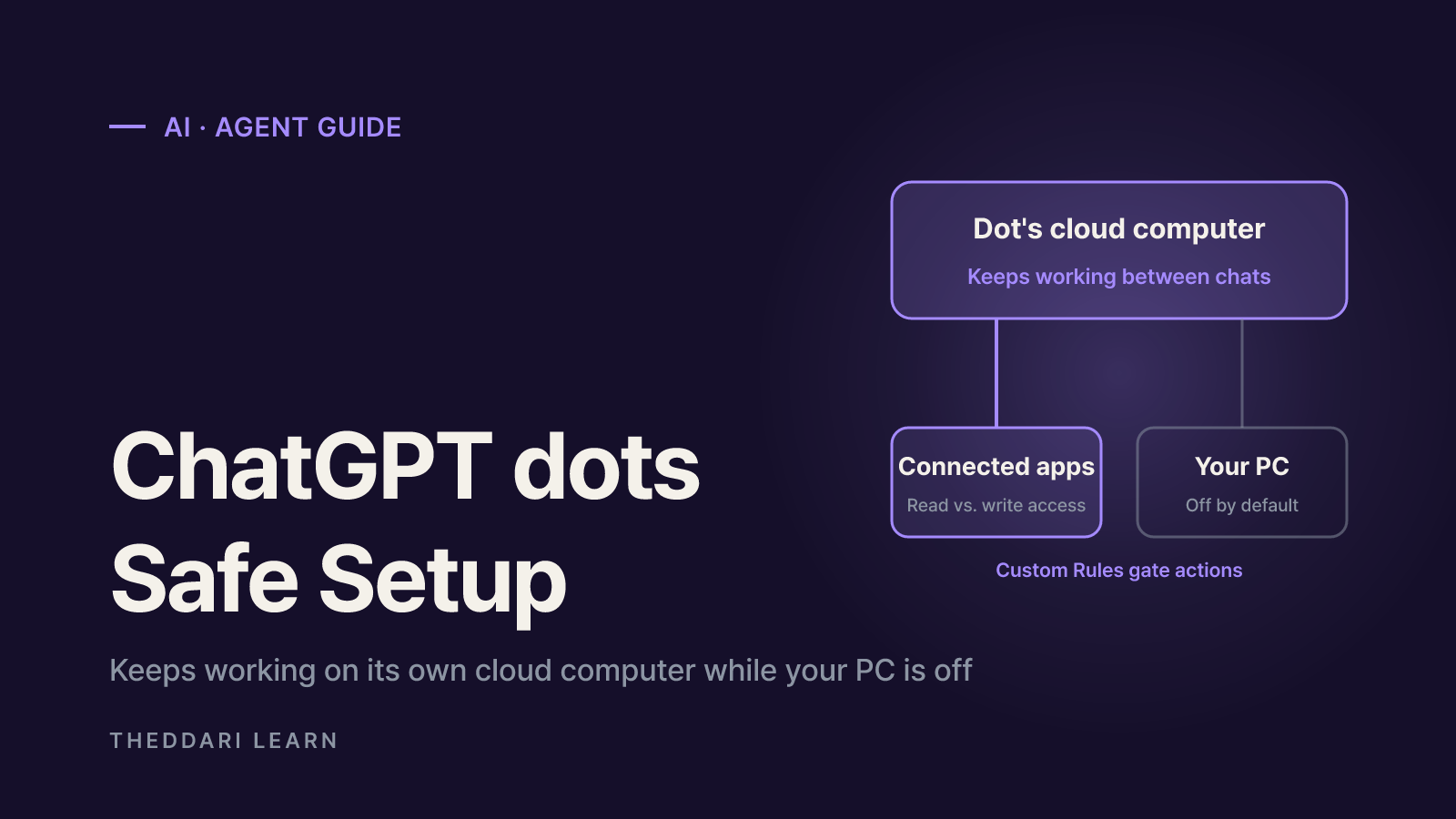
ChatGPT dots are always-on AI agents that OpenAI launched on September 29, 2026. Each dot gets its own cloud computer and browser, so it can keep moving a task forward between conversations and while your laptop is closed. This guide walks through setup, the permissions you grant, and the safety limits you should understand before handing work over. Facts here come from the OpenAI Help Center and OpenAI's launch post, checked on November 15, 2026.
What ChatGPT dots are and how they differ from a chat
A normal ChatGPT conversation answers when you ask and then waits. A dot takes a goal, figures out next steps on its own, and keeps tracking progress when you are not around. It messages you when it has results or needs a decision. OpenAI says dots are powered by GPT-6 Astra, and a November 3, 2026 update added GPT-6.1 Terra for parts of the work. Through OpenAI's plugin ecosystem, a dot can connect to more than 4,000 apps.
How it works
- Regular ChatGPT chat
- Replies per prompt
- ChatGPT dots
- Pursues a goal between conversations
Where it runs
- Regular ChatGPT chat
- Inside the chat
- ChatGPT dots
- Its own cloud computer and browser
Your computer
- Regular ChatGPT chat
- Not used
- ChatGPT dots
- Optional, off by default
Memory
- Regular ChatGPT chat
- ChatGPT memory
- ChatGPT dots
- ChatGPT memory plus the dot's own memories
Reaches out first
- Regular ChatGPT chat
- No
- ChatGPT dots
- Yes, with updates and decisions
Usage limits
- Regular ChatGPT chat
- Plan limits apply
- ChatGPT dots
- Dot chats don't count; Codex/Work tasks do
The "works while your computer is off" claim is about the cloud workspace. The ChatGPT Learn docs say you can reach your dot, and it can keep working, even when your computer is off. Any task that needs files or tools on your own machine is different: that machine must be online with the ChatGPT desktop app open.
Check eligibility before you start
If you cannot see the option to create a dot, the cause is usually eligibility. Here is what the Help Center listed as of November 2026.
Pro (personal)
- Requirement (Nov 2026)
- Age 18+, outside EEA, Switzerland, UK
- Notes
- Gradual rollout; may take days
Business Premium
- Requirement (Nov 2026)
- Supported regions and workspace eligibility
- Notes
- Depends on workspace settings
Enterprise, Edu, Healthcare
- Requirement (Nov 2026)
- Admin preview Nov 4 to 18; on by default from Nov 18 unless admins opt out
- Notes
- Not available with UAE data or inference residency
Devices
- Requirement (Nov 2026)
- iOS/Android app, desktop app (incl. Windows), desktop web
- Notes
- Mobile web not supported
Each person can create one personal dot. OpenAI says the first dot is included in Pro and Business Premium at no extra cost, and that future options will let you add more dots or raise a dot's speed and monthly workload. Texting a dot over iMessage or RCS is a limited beta for some Pro users in the US, Canada and Mexico.
How to set up ChatGPT dots step by step
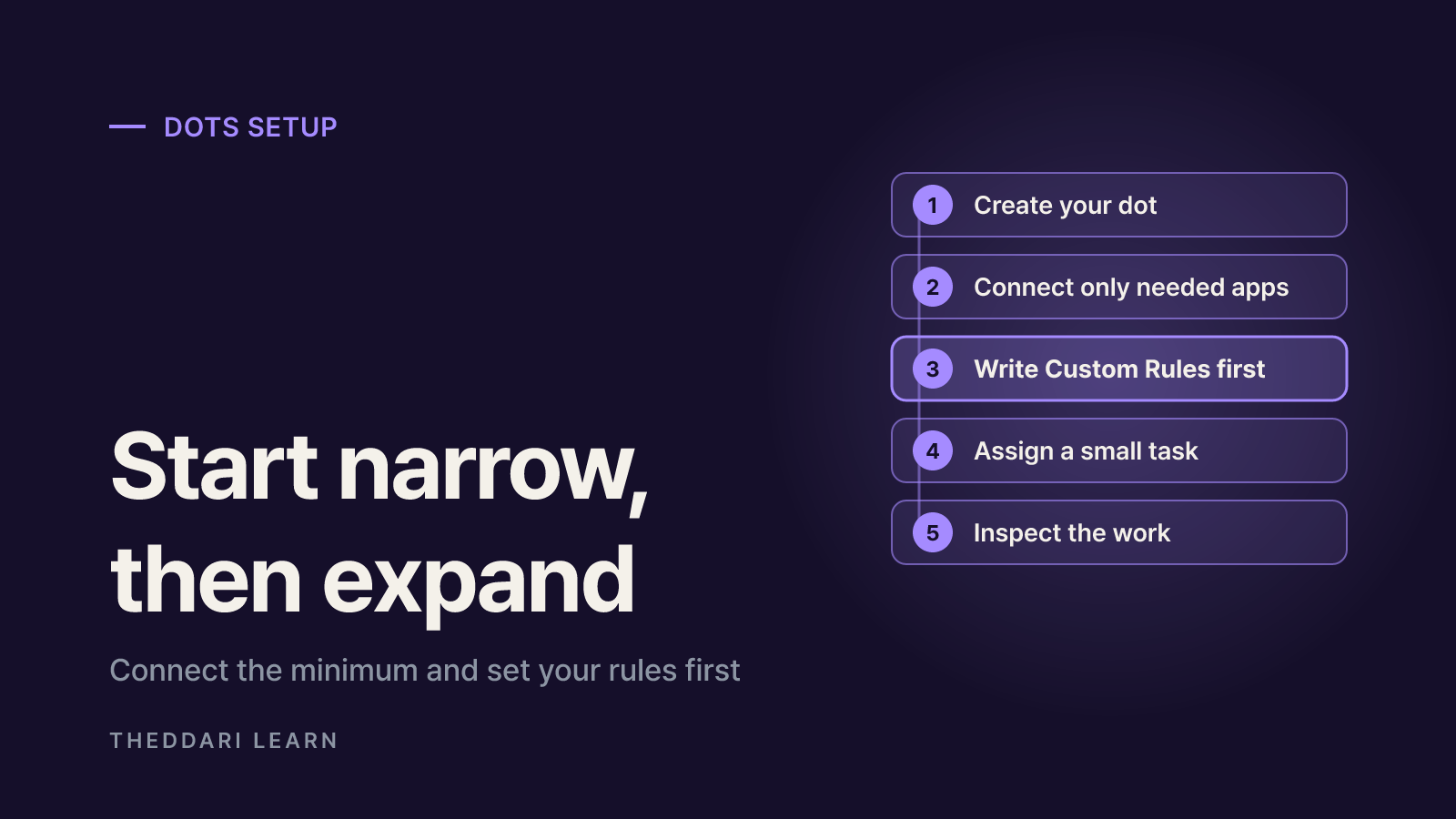
Start narrow. Connect the minimum, set your rules, and expand only after you have seen a few results you trust.
- 1
1. Create your dot
Open chatgpt.com/dots, the ChatGPT desktop app, or the latest mobile app and follow onboarding. Naming it changes the handle from @yourname-dot to @yourname-agentname. You can pick a character or a pet look.
- 2
2. Connect only the apps you need
In your dot's profile, go to Customize > Plugins, pick a supported app, and read its permissions before connecting. Start with read-heavy apps such as a calendar; add send or edit permissions later.
- 3
3. Write Custom Rules first
Open Customize > Custom rules, review the defaults, and add your own, such as 'ask before sending any email' or 'hand off all purchases to me'.
- 4
4. Assign a small, checkable task
Try something like 'review my calendar each morning and tell me what's coming up.' Attach files or photos with the + button in the conversation.
- 5
5. Inspect the work
In the desktop app profile, review In progress, Scheduled and Completed. Under Computers you can open the dot's cloud computer, take over if needed, and return control.
Leave local computer access for later. It must be enabled from the ChatGPT desktop app on that specific machine, and connecting a computer to Codex or turning on Work Sync does not give your dot local access.
What to delegate, and what to keep
OpenAI's own examples are reviewable, recurring work: refreshing a presentation as data and customer feedback change, turning an interview transcript into show notes and social drafts, or scoping, coding and testing small app fixes. For personal use, a simple three-tier split helps.
- Good to delegate: a morning schedule briefing, weekly topic monitoring and summaries, email reply drafts, spotting travel plan changes and researching alternatives, updating recurring reports.
- Delegate with approval: sending emails or messages, sharing files, purchases with cards already saved on a merchant site, accepting invites.
- Keep for yourself: changing passwords, moving money between financial accounts, changing security settings. OpenAI designed dots to help with the surrounding task but hand these steps back to you.
If you ask a dot to watch fast-moving topics such as AI news or market chatter, compare what it reports against the original sources. To decide which keywords are worth tracking, you can scan what's being discussed on the Theddari AI Telegram trends page and the blog trends page, then give your dot a focused watch list.
How dots permissions work
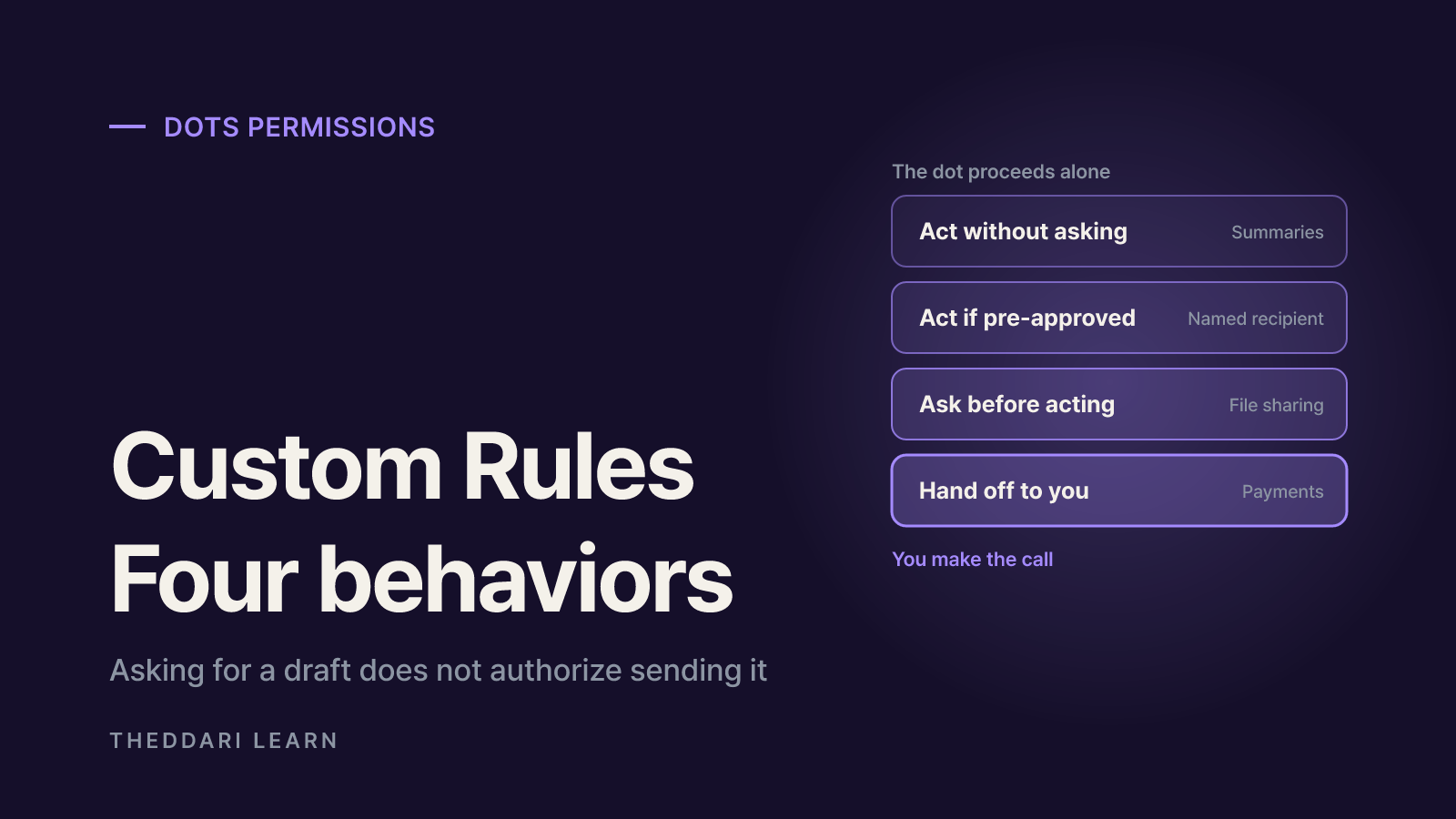
Think of permissions as three layers: what the dot can reach, what it may do once there, and built-in safety rules you cannot switch off.
Connected apps: read is not write
App connections are shared across ChatGPT, ChatGPT Work and Codex. The Help Center notes that permission to read information may not include permission to change it or send messages. Also note that a dot can review connected information proactively and form memories from it even when you have not asked about it.
Your computer: off until you allow it
Go to Computers > Your computer > Allow access and confirm a second time. Once on, the dot can reach files on that machine from any of its messaging channels. Microphone and camera use need separate device permissions. Use Revoke access to end it; a computer showing Offline is still connected.
The four Custom Rules behaviors
Take action without asking
- Meaning
- Proceeds on its own
- Typical use
- Internal notes, summaries
Take action if pre-approved
- Meaning
- Only if your prompt explicitly asked
- Typical use
- Email to a named person
Ask before taking action
- Meaning
- Confirms every time
- Typical use
- File sharing, invites
Hand off to you
- Meaning
- You complete the step
- Typical use
- Payments, sensitive account steps
"Pre-approved" means you explicitly requested that action, so asking for a draft does not authorize sending it. Custom Rules don't grant app or computer access and can't override built-in safeguards. A dot can help you write a rule, but changing one needs your approval.
Security limits to understand
According to OpenAI's safety explainer, each cloud workspace is sandboxed, and a separate Auto-review system checks actions like sending email or changing files before they run. Permanent deletion, running software from unrecognized sources, and granting new security-sensitive access require confirmation each time. Some risks still sit with you.
- Prompt injection: hidden instructions in a web page, email or document can try to redirect a dot. Avoid auto-processing mail from unknown senders.
- Passwords: only secure sign-in and saved-password flows keep credentials out of the model's context. A password typed into chat or a document may be visible.
- Disconnecting has limits: it stops new sharing, but information the dot already learned stays in its context.
- Pausing has limits: it keeps data, and separate Work, Codex or scheduled tasks may continue.
- Deletion is final: it starts deletion of the dot's own memories and archives its main conversation; a new dot won't restore that context.
- Training: on personal plans, the 'Improve the model for everyone' setting controls whether dot conversations and work are used. Business, Enterprise and Edu content is not used by default.
For texting beta users, OpenAI is explicit that messages route through Linq and are not end-to-end encrypted, even over iMessage or RCS. Keep financial or health details inside the ChatGPT app.
 theddari.comTrendsBlog PostsSummarized Naver blog posts
First-week checklist
- Confirm plan, age and region, then create your dot at chatgpt.com/dots.
- Connect one or two read-focused apps and read each permission screen.
- Add rules: ask before sending or sharing; hand off all purchases.
- Start with one scheduled task whose output you can verify quickly.
- Check Scheduled, In progress and the cloud computer view once a day.
- Enable local computer access only when needed and revoke it afterward.
- When you stop using it, clean up separate scheduled tasks, not just pause.
A dot is only as safe as the scope you give it. Starting small and widening access as results earn your trust keeps the benefit of an assistant that works while you are away, while limiting the damage if it gets something wrong.