Contents7 sections
- What happened in the reported Anthropic Console overcharge
- How AI API billing works: prepaid credits and auto-reload
- Setting an API spend limit in the Claude Console
- What to do after a billing error, step by step
- Why spend limits are not enough on their own
- Frequently asked questions
- Sources and references
If an AI API billing error hits your card, document everything, contact the provider's support with that evidence and check your card issuer's dispute deadline on the same day. Then fix the underlying exposure by treating usage limits and payment safeguards as two separate layers. This guide reflects the official Anthropic (Claude) and OpenAI documentation as of October 2026; menu names and policies can change, so confirm them in your own console.
What happened in the reported Anthropic Console overcharge
On October 16, 2026, a developer based in Costa Rica posted on Hacker News that the Anthropic Console charged their card 100 times the intended amount while they were manually adding API credits. Their system used a locale where commas mark decimals. They say they typed 5.04 and were charged $504.00, and that local VAT of $65.52 brought the card charge to $569.52. They also wrote that the purchase went through on a single click without a confirmation step, and that an automated support bot initially closed their refund request by citing policy.
An account identifying itself as an Anthropic employee replied that there was a UI and form bug that did not handle internationalization well, that a typed "5,04" had been converted to $504, that a fix was underway and that support would contact the user directly. The user responded that they had typed a period, not a comma, so the exact reproduction path differs between the two accounts, and the final outcome was not public when this guide was written. Treat the details as one user's report plus a partial company acknowledgment. The broader lesson holds regardless: controlling how much you consume and controlling what gets charged to your card are different problems.
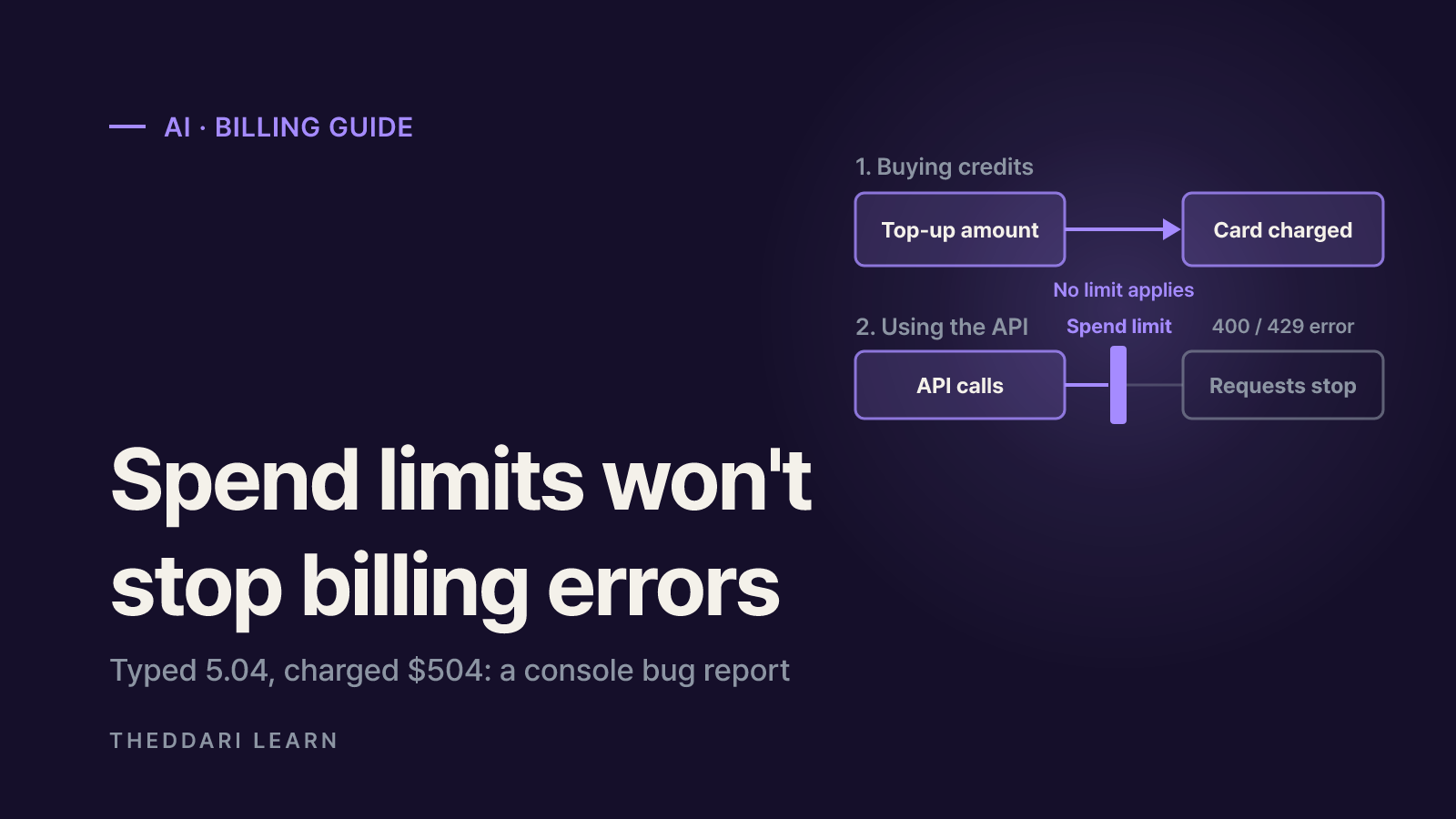
This incident was not caused by heavy API usage. It was a credit purchase processed at the wrong amount, so a low monthly spend limit would most likely not have prevented it.
How AI API billing works: prepaid credits and auto-reload
According to Anthropic's help center, most Claude Console organizations pay with prepaid usage credits. You buy credits first, usage draws them down and API calls stop when the balance runs out. Only successful requests are billed, but a request that was on track to succeed is still charged if your client disconnects or times out. Purchased credits expire one year after purchase, and the same page states that all credit purchases are non-refundable. Organizations with a sales-arranged invoicing agreement are billed monthly in arrears instead.
Auto-reload buys credits automatically when your balance falls below a threshold you choose, topping it back up to a target. One detail is easy to miss: if your balance is already at or below the threshold when you turn the feature on, the button changes to "Turn on and purchase" and your card is charged immediately, plus applicable taxes. OpenAI's prepaid billing guide describes a similar setup with a $5 minimum purchase, auto-reload switched on by default during initial setup and an optional monthly reload limit. It also warns that API access may not stop instantly when credits run out, so a balance can go negative, and advises against treating the prepaid balance as an instant cutoff.
Default billing
- Anthropic (Claude Console)
- Prepaid credits; invoiced orgs pay monthly
- OpenAI (API Platform)
- Prepaid credits; monthly-billed accounts can prepay
Credit expiry
- Anthropic (Claude Console)
- One year from purchase
- OpenAI (API Platform)
- One year after purchase
Refund stance
- Anthropic (Claude Console)
- All credit purchases described as non-refundable
- OpenAI (API Platform)
- Non-refundable by default; verified billing errors and unauthorized use can be reviewed
Auto-reload
- Anthropic (Claude Console)
- Threshold and target balance; charges immediately if already below threshold
- OpenAI (API Platform)
- Threshold, target balance and optional monthly reload limit
Usage caps
- Anthropic (Claude Console)
- Tier monthly cap, your own limit and per-workspace limits
- OpenAI (API Platform)
- Organization and project monthly limits, as alerts or hard limits
Setting an API spend limit in the Claude Console
Anthropic's rate limit documentation assigns each usage tier a monthly spend cap. As of October 2026 the Start tier is capped at $500, Build at $1,000 and Scale at $200,000, while Custom tier limits are arranged with the account team. When the cap is reached, API usage pauses until 00:00 UTC on the first day of the next month and requests return HTTP 429 with the enforced_spend_limit_reached code. That response carries no retry-after header, so SDK retries will not help.
- 1
Open the Billing page
In the Claude Console, go to Settings and then Billing. You need an Admin or Billing role to change payment and limit settings.
- 2
Set your own spend limit
Under Spend limits, choose Adjust limit or Set limit and enter an amount. It cannot exceed your tier's cap. Once reached, requests return HTTP 400 with invalid_request_error until you raise or remove the limit or the period resets.
- 3
Split work into workspaces
Keep experiments, staging and production on separate workspaces with their own spend and rate limits. The default workspace cannot carry a custom limit, so move important traffic out of it.
- 4
Re-check auto-reload values
In the Credit balance section, open Manage auto-reload and confirm the trigger and target amounts. Enter whole-dollar figures without decimal separators and read the total due before confirming any purchase.
OpenAI separates alerts from hard limits
OpenAI's spend limits guide lets you set monthly limits at the organization and project level. Unless you turn on Enforce a hard limit, a limit only sends notifications and traffic keeps flowing. With a hard limit, affected requests return 429 with organization_spend_limit_exceeded or project_spend_limit_exceeded. Enforcement is not instantaneous, so recorded spend can slightly exceed the configured amount. Adding alerts below the hard limit gives you time to investigate unexpected traffic before production requests start failing.
What to do after a billing error, step by step
- Capture the purchase screen, the value you entered, the receipt or invoice and the card authorization notice, with timestamps and time zone.
- Compare the console's invoice history and credit balance with the amount your card actually shows, including any tax added on top.
- Open a ticket through the provider's official support channel, label it clearly as a billing error and ask for human review if an automated reply only repeats policy.
- Call or message your card issuer the same day to ask about its dispute process and deadline, which depend on the issuer, the card network and the law where your card was issued.
- Pause auto-reload or lower its monthly cap until the issue is resolved, and confirm that real-time transaction alerts are on.
Plan for side effects. OpenAI notes that if a payment is disputed or refunded, the matching credits are removed from your account, which can stop production traffic if you have already been relying on that balance. Card disputes can also take a long time; the developer in this case said their bank process could stretch for months while the charge sat on the statement.
Why spend limits are not enough on their own
Spend limits are the right tool against runaway usage from a leaked key, a looping agent or a misconfigured batch job. They do nothing about a purchase entered at the wrong amount or several auto-reloads firing close together. For solo developers, a practical setup is a dedicated card with a modest limit for AI services plus push or SMS alerts for every authorization. For teams, keep the number of accounts with billing permissions small and assign someone to review the usage page weekly rather than at month end.
- Usage layer: organization and workspace or project spend limits, alert thresholds below them and separate keys per purpose
- Payment layer: a monthly auto-reload cap, a dedicated low-limit card, real-time card alerts and careful amount entry
- Incident layer: saved receipts, support ticket numbers and a note of your card's dispute deadline
Billing problems often surface in developer communities before official notices appear. theddari's AI Telegram trends and blog trends pages can help you spot those discussions early; always confirm the actual policy in the provider's documentation before changing your setup.
 theddari.comTrendsBlog PostsSummarized Naver blog posts
In short: when a charge looks wrong, start collecting evidence, contact support and check your dispute deadline on the same day. Then review usage limits and payment safeguards separately. A spend limit does not remove every billing risk, and simple habits such as reading the total due and keeping card alerts on form the second line of defense.