AI Agent iPhone Control: Setup Options and Privacy Risks
Can an AI agent use your iPhone? Compare Shortcuts, iPhone Mirroring and XCTest-based tools: requirements, what to delegate, and which permissions to lock down.
Contents7 sections
Key takeaways
- As of November 2026, an AI agent can operate an iPhone, but only via Shortcuts, iPhone Mirroring on a Mac, or Mac-based developer automation, not through one app tapping other apps.
- iPhone Mirroring needs macOS 15+ on an Apple silicon or T2 Mac and iOS 18+. It is unavailable in the EU, and Face ID, camera and mic do not work through it.
- Developer automation (XCTest and WebDriverAgent-style tools) needs Xcode and Developer Mode and can read even banking app screens, so set blocked apps and action limits first.
- Keep payments, transfers, sign-ins and one-time codes out of the agent's hands and finish those steps yourself on the phone.
- Once Mirroring is set up, your Mac keeps receiving iPhone notifications, so turn off Show on Mac for apps that send verification codes.
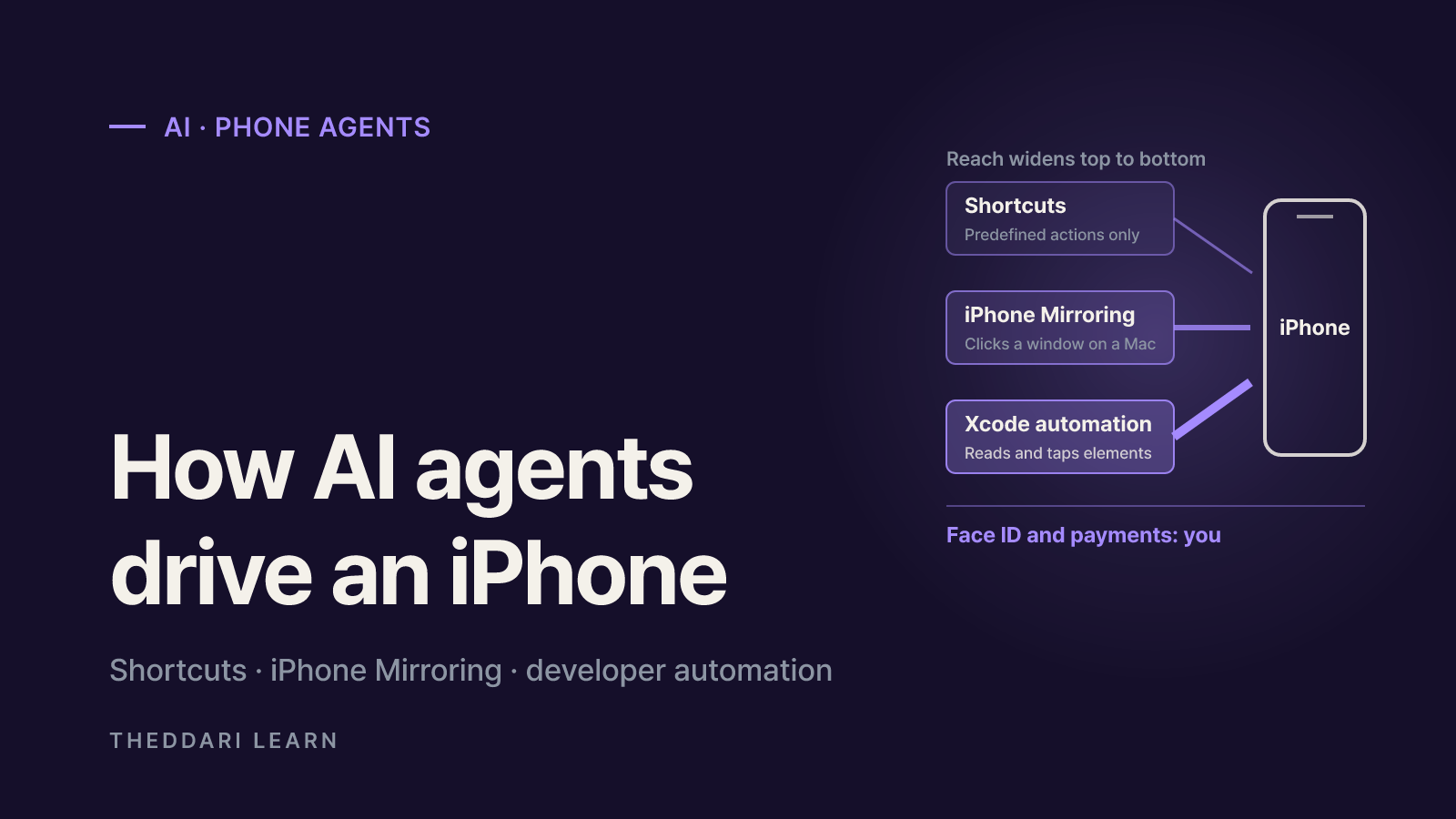
Short answer on AI agent iPhone control: yes, as of November 2026 it is possible, but not the way it works on Android or a desktop. No single iPhone app can freely see and tap other apps. Every working setup we found goes through one of three routes: Shortcuts that run predefined actions, iPhone Mirroring on a Mac that a computer-use agent drives, or developer automation built on Apple's XCTest testing stack (often via WebDriverAgent) running from a Mac with Xcode. Each route needs some setup, and steps like payments, sign-ins and Face ID are best left to you.
This guide is not a tutorial for one product. It compares what each route needs, which tasks are reasonable to hand over, and which permissions and settings deserve a second look. Tool support changes quickly, so confirm details in each project's own documentation before you install anything.
How AI agent iPhone control actually works
A phone-using AI agent runs a simple loop: look at the screen (a screenshot or a list of on-screen elements), decide the next action, send a tap, swipe or keystroke, then check what changed. The hard part on iOS is getting the two channels the loop needs, a way to see and a way to act.
iOS keeps apps sandboxed from each other, so a regular app has no sanctioned path to read another app's screen and press its buttons. That is why public setups either route through a Mac or stick to actions that apps and the system already expose through Shortcuts. Most viral clips of an agent using an iPhone fall into one of these buckets.
When an agent reads your screen, that text or image is usually sent to an AI model so it can decide what to do. With a cloud model, message threads, health data or bank balances can leave your devices. That data flow is the biggest privacy question no matter which route you pick.
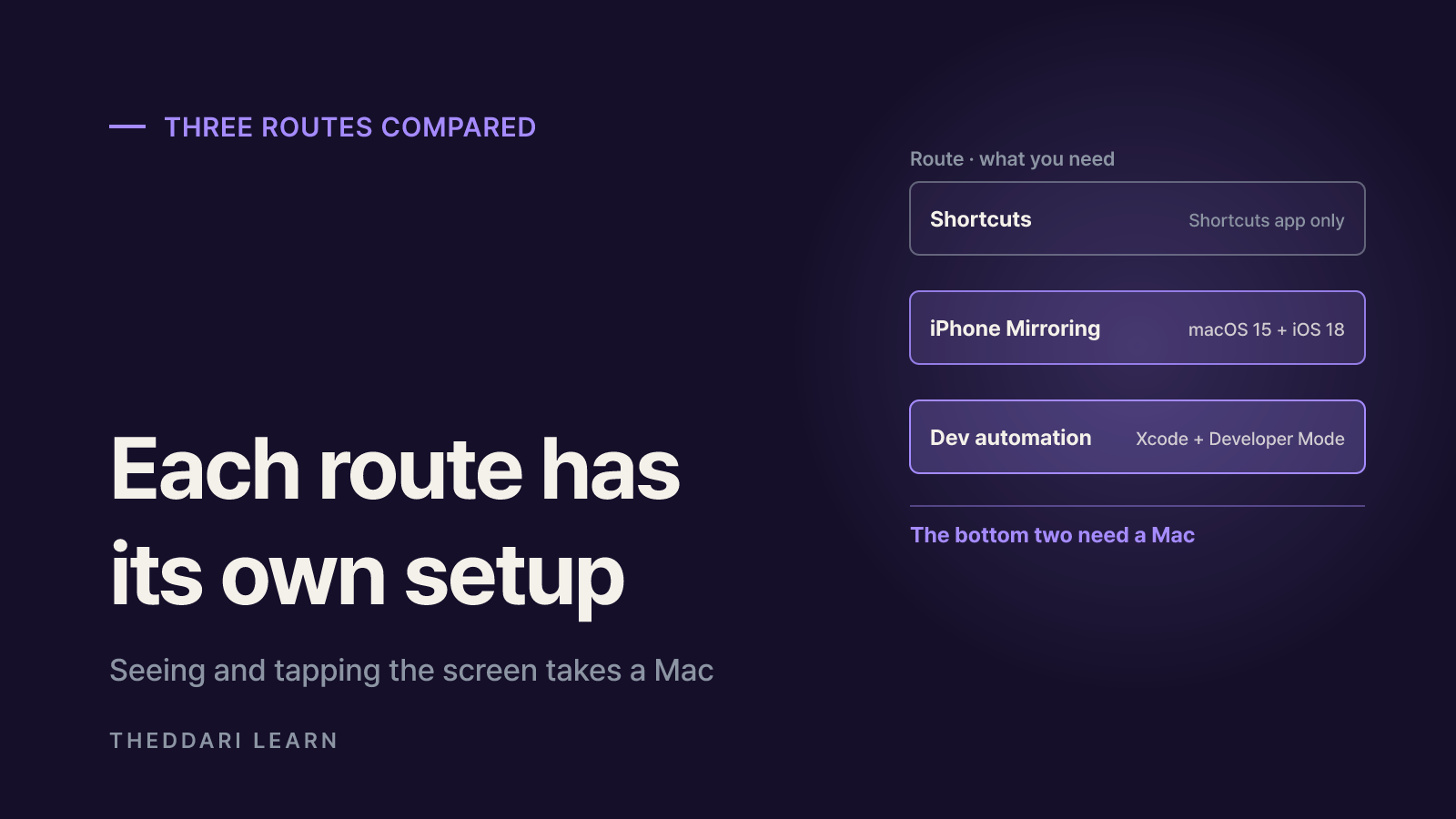
Three routes compared: Shortcuts, iPhone Mirroring, developer tools
What it can do
- Shortcuts
- Run predefined actions only
- iPhone Mirroring + Mac agent
- Click and type in the Mirroring window like a person
- Developer automation (XCTest-based)
- Read on-screen elements, tap and type in most apps
What you need
- Shortcuts
- The Shortcuts app
- iPhone Mirroring + Mac agent
- Mac on macOS 15+ (Apple silicon or T2), iPhone on iOS 18+
- Developer automation (XCTest-based)
- Mac with Xcode, Developer Mode on the iPhone, USB for first setup
iPhone state
- Shortcuts
- Normal use
- iPhone Mirroring + Mac agent
- Locked and near the Mac
- Developer automation (XCTest-based)
- Connected, running a test runner
Face ID and camera
- Shortcuts
- You handle them
- iPhone Mirroring + Mac agent
- Not available through Mirroring
- Developer automation (XCTest-based)
- Done by you on the phone (depends on the tool)
Activity record
- Shortcuts
- Per-shortcut Privacy tab
- iPhone Mirroring + Mac agent
- iPhone logs which Mac used it and for how long
- Developer automation (XCTest-based)
- The tool's own logs (varies)
Good fit
- Shortcuts
- Repeatable, structured tasks
- iPhone Mirroring + Mac agent
- Light lookups and tidying
- Developer automation (XCTest-based)
- App testing, multi-step routines
Shortcuts: the narrowest permission model
Shortcuts is Apple's built-in app for chaining actions. According to the Shortcuts User Guide, when a shortcut asks for data you choose Allow Once, Always Allow or Don't Allow, and Always Allow stops future prompts for that shortcut. If you wire an agent to trigger shortcuts, its reach is limited to the actions inside them. The trade-off is that it cannot explore an unfamiliar app screen on its own.
iPhone Mirroring: driving the phone window on your Mac
Per Apple Support (published October 14, 2026), iPhone Mirroring needs a Mac with Apple silicon or the T2 Security Chip on macOS Sequoia 15 or later, an iPhone on iOS 18 or later with a passcode, the same Apple Account with two-factor authentication on both, and Bluetooth and Wi-Fi turned on. The iPhone must be locked and nearby, and only one Mac and one iPhone can be paired at a time. It is currently unavailable in the European Union.
Mirroring was built for people, not agents. The idea is that a computer-use agent that can already see and click your Mac screen can work the Mirroring window too; Apple does not promise any agent integration. Those agents typically ask for macOS Screen Recording or Accessibility permissions, which cover your whole Mac, not just the phone window. Apple also notes that the camera and mic, including Face ID, are not available in Mirroring, so an agent stalling at a Face ID payment prompt is expected behavior.
Developer automation: reading and tapping elements directly
Several open-source projects connect AI agents to XCTest, the framework Apple ships for UI testing. The iphone-use README (checked November 2026), for example, asks for a Mac on macOS 15 or later with Xcode signed in to an Apple ID (a free one works), an iPhone on iOS 15 or later with Developer Mode enabled under Settings > Privacy & Security > Developer Mode, and a USB cable for the first setup. It reads the screen as an accessibility tree, meaning text rather than pixels, and sends taps through a small test runner installed on the phone.
The project says this works even in banking and payment apps that black out screen capture. That breadth is the point, and also the risk: this route can expose more of your data than any other. Trying it on a spare test device first is a sensible move.
Setting it up step by step
- 1
Write the job in one sentence
Something like 'read my step count for this week'. If the task involves paying, sending money or verifying identity, carve those steps out for yourself.
- 2
Pick the narrowest route that works
Use Shortcuts if they cover it, Mirroring for lookups and tidying, and developer automation only for app testing or routines that cross several apps.
- 3
Pair iPhone Mirroring
Open the iPhone Mirroring app on your Mac and enter your iPhone passcode on the phone. Choose whether to allow notifications and whether the Mac should Ask Every Time or Authenticate Automatically. With an agent attached, Ask Every Time is the safer choice, because automatic authentication lets a connection start any time the Mac is unlocked.
- 4
Install developer tooling only if needed
Read the project's requirements and license, sign in to Xcode, connect the iPhone by USB, tap Trust, and turn on Developer Mode. Type passwords and codes yourself; never paste them into the agent's chat.
- 5
Set blocked apps and action caps
Where the tool supports it, block Wallet, Passwords, banking and brokerage apps, and cap the number of actions per task. iphone-use says its blocked-app list and action cap apply regardless of what the prompt says.
- 6
Start with a harmless test
Have the agent open Settings, read the screen and go Home while you watch. If it taps something you did not expect, narrow the scope before going further.
Permission and privacy checklist
If you use iPhone Mirroring
- Notifications flow to your Mac. Apple says that once connected, your Mac receives iPhone notifications and Live Activities even when you are not mirroring and the phone is not nearby, as long as it is on. Verification texts and bank alerts can then appear where a Mac agent can see them, so turn off Show on Mac for those apps in Settings > Notifications.
- Review the activity record. While mirroring, the iPhone shows it is in use and names the Mac. Settings > General > AirPlay & Continuity > iPhone Mirroring lists which Mac connected, when and for how long.
- Know the automatic stops. The connection pauses after inactivity, and unlocking the iPhone directly ends mirroring.
- Revoke access when you are done. As the Apple Personal Safety guide explains, you can revoke from the Mac app's settings or remove a Mac from the iPhone; you will need to set Mirroring up again afterward.
If you use developer automation
- Developer Mode lets test apps run. Consider switching it off after a session and check for development apps you do not recognize.
- Treat remote access as a separate decision. Tailscale or Cloudflare tunnel options let you drive the phone from anywhere but widen the attack surface. iphone-use says it listens only on 127.0.0.1 behind a password by default and that its iOS 15/16 LAN path is unencrypted.
- Read the license and data handling. iphone-use, for instance, is source-available under PolyForm Shield 1.0.0, which bars competing uses, and says it keeps only the length of typed text. Policies differ across tools.
For every route
- Know where screen data goes. Check the data retention and training policies of the model service your agent calls.
- Watch for hidden instructions. Text inside a message, email or web page can read like a command to the agent (indirect prompt injection). Keep tasks that open Messages or Mail tightly scoped.
- Go easy on Always Allow. In a shortcut's Details > Privacy you can switch items off or tap Reset Privacy. Apple treats privately shared shortcuts as untrusted and warns that it cannot verify how they behave.
What to delegate and what to keep
Reading settings, tidying notes or photos
- Delegate?
- Reasonable
- Why
- Easy to undo, no money at stake
Looking up health data like step counts
- Delegate?
- With care
- Why
- Sensitive data may reach the model
Reading messages, drafting replies
- Delegate?
- With care
- Why
- You review before anything is sent
Payments, transfers, confirming orders
- Delegate?
- Avoid
- Why
- A wrong tap costs money, and Face ID is required
Signing in, entering one-time codes
- Delegate?
- Avoid
- Why
- Never hand passwords or codes to an agent
Changing account or security settings
- Delegate?
- Avoid
- Why
- Can lead to lockouts or account takeover
New phone-using agents appear almost weekly. To see which ones people are actually discussing, scan mentions on theddari's AI Telegram trends, compare blog coverage on the blog trends dashboard, and then confirm support details in the official docs.

The bottom line: before letting an agent loose on your iPhone, put four things in place — the narrowest route that does the job, human-only authentication steps, notifications muted on the Mac, and a connection you can revoke. With those set, start with low-risk lookups and widen the scope gradually.
Frequently asked questions
Can an AI agent control other apps using only my iPhone?
Does this work from a Windows PC or an older Mac?
Can an AI agent pass Face ID or approve a payment for me?
Is iPhone Mirroring available in Europe?
How do I see when my iPhone was used remotely and cut off access?
Sources and references
- 1Apple Support: iPhone Mirroring — Use your iPhone from your Mac (Oct 14, 2026)(opens in a new tab)support.apple.com
- 2Apple Personal Safety User Guide: Manage iPhone Mirroring on your iPhone or Mac(opens in a new tab)support.apple.com
- 3Apple Shortcuts User Guide: Adjust basic privacy settings in Shortcuts(opens in a new tab)support.apple.com
- 4GitHub: leeguooooo/iphone-use README(opens in a new tab)github.com
Related articles
 AI
Inkling 2 Mini Local: Picking a GGUF Quant for Your Laptop
The official Inkling 2 Mini checkpoint is about 20 GB and wants 32 GB of memory, but GGUF quants bring it to 16–24 GB laptops. Here is how to pick one, and how to read the viral 5.4 GB build.
 AI
Anthropic's Riemann Hypothesis Proof: Is It Verified?
On November 20, 2026, Anthropic researcher Levent Alpöge said he had proved the Riemann Hypothesis with Claude. A day later the Lean and Mathlib communities certified the formal proof. What that means, what is still missing, and a checklist for judging big proof claims.
 AI
AgentRoboCritic: Can Frontier AI Agents Control Robots?
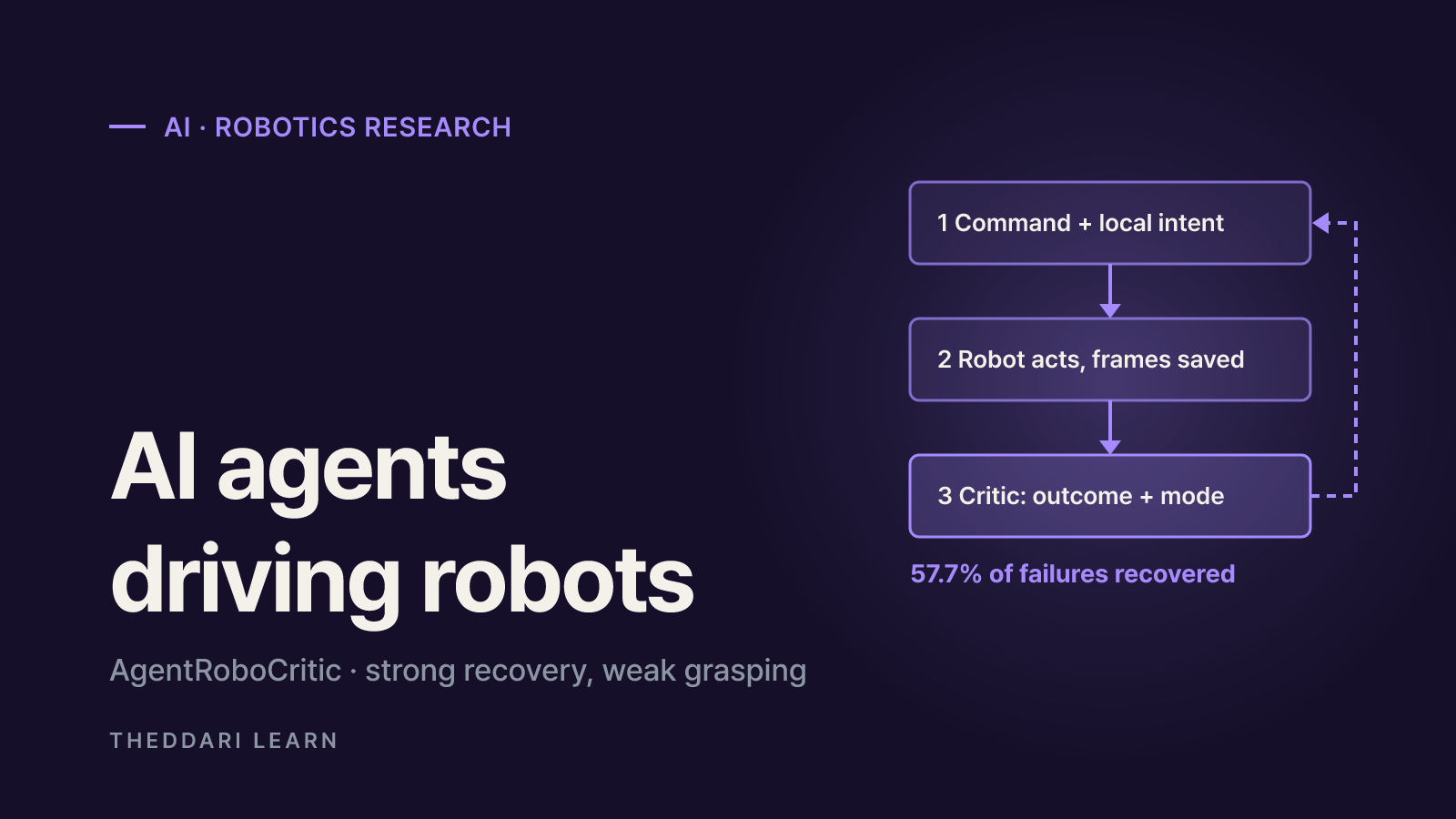
A November 2026 arXiv study from Carnegie Mellon, UIUC and Bosch scores every action a frontier AI agent sends to a robot. Here is what it found about recovery, grasping, alignment, zero-shot success and latency, and how far to trust it.